
The Digital Matrix Survival Kit: 17 Free Tools With Zero Logins!

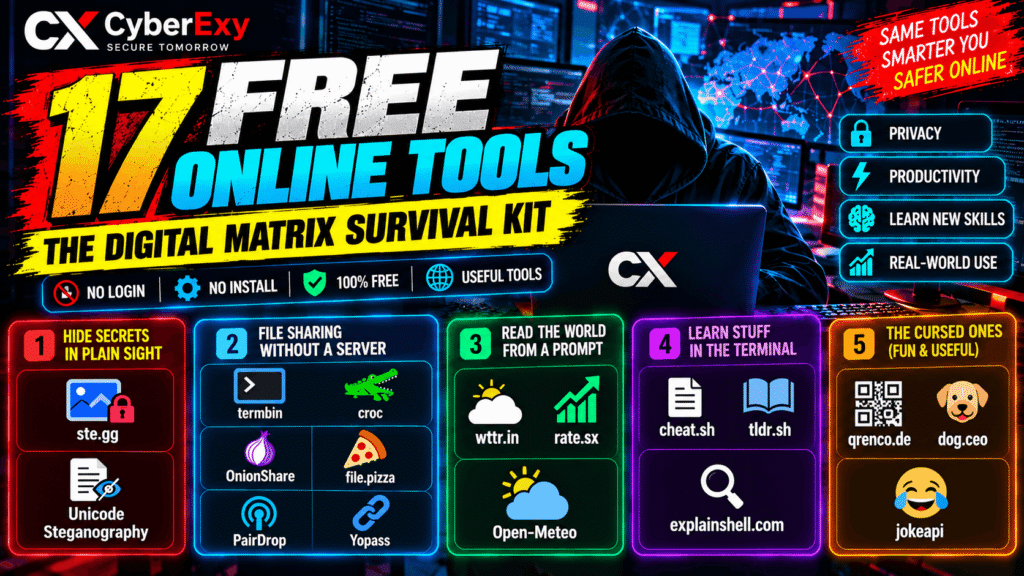
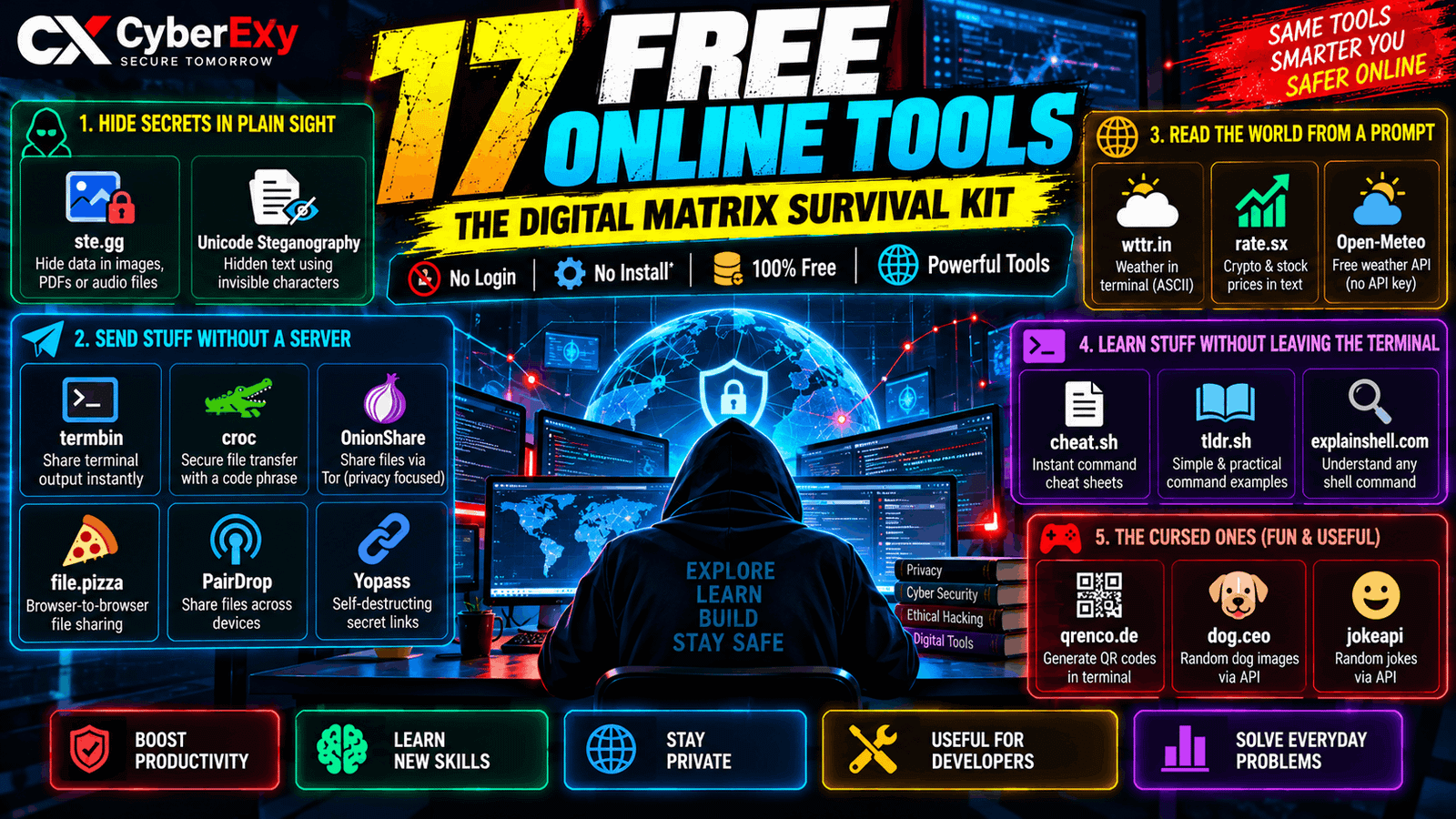
17 Free Online Tools With No Login Required: The Ultimate Digital Survival Kit
Discover 17 useful free web tools for file sharing, digital privacy, steganography, terminal productivity, weather APIs, and developer utilities without creating an account for basic use.
The internet is full of tools that ask you to register, verify your email, download an application, or subscribe before getting started. However, plenty of useful web services let you perform everyday tasks with fewer barriers.
From hiding a message inside a digital image to transferring files between devices, checking weather forecasts from a terminal, and understanding complex Linux commands, these tools can make your digital workflow simpler.
In this CyberExy guide, we explore 17 interesting web tools that are worth bookmarking. We also explain what each tool does, when it is useful, and what you should know about privacy and security before using it.
Important: Free access does not automatically mean complete privacy, zero data collection, or unlimited usage. Some services require an internet connection, use external servers, or require software installation.
1. Digital Steganography: Hide Information in Plain Sight
Steganography is the practice of concealing information inside another file or message. It differs from encryption: encryption makes information unreadable without the appropriate key, while steganography attempts to conceal the existence of the information.
1. STE.GG — Browser-Based Steganography
Website: https://ste.gg/
STE.GG provides browser-based tools for experimenting with steganography and hidden messages. Depending on the selected mode, users can work with supported image or audio formats and explore text-based hiding techniques.
Key features:
- Image and audio steganography options.
- Encode, decode, and analyse functions.
- Experimental tools for exploring hidden text.
- Browser-based access without a conventional registration process for basic use.
Best for: Learning how steganography works and experimenting with digital media.
Security note: Hidden data may be lost when an image is compressed, resized, or processed by another platform. Never use steganography as a substitute for strong encryption when protecting sensitive information.
2. Unicode Zero-Width Steganography
Website: https://330k.github.io/misc_tools/unicode_steganography.html
Unicode includes characters that may have no visible width in ordinary text. This tool demonstrates how selected zero-width characters can encode hidden text or binary information inside a text string.
Key features:
- Encode and decode hidden text.
- Experiment with invisible Unicode characters.
- Explore text-based steganography in a browser.
- Learn why copying and pasting text can affect hidden characters.
Best for: Students, developers, and people learning about Unicode and digital information hiding.
Security note: Invisible characters can be stripped or altered by email clients, messaging apps, and text-processing systems. Hidden content is not necessarily secure or undetectable.
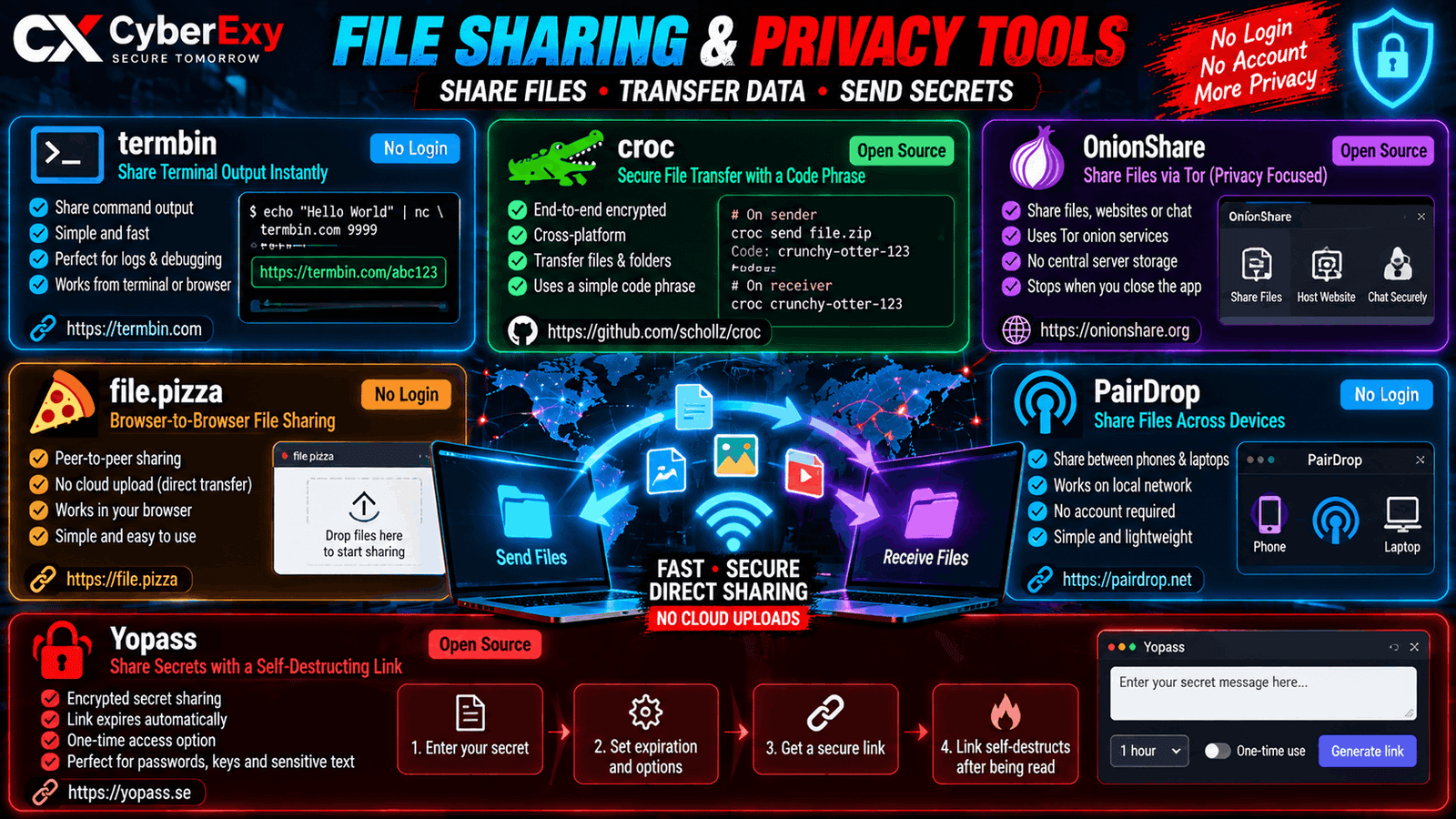
2. File Sharing Without Conventional Cloud Uploads
These tools offer different ways to transfer files. Some use direct browser connections, while others rely on relays or specialised software.
3. Termbin — Share Terminal Output
Website: https://termbin.com/
Termbin is a paste service designed for command-line workflows. It can be useful when you need to share a small, non-sensitive terminal output with another person.
For example, a user can pipe harmless diagnostic text to a compatible paste service and receive a URL for sharing.
Best for: Sharing short logs, command output, and debugging information.
Remember: Shared output may become accessible to anyone who obtains the link. Remove passwords, access tokens, personal information, and confidential system details before uploading.
4. croc — Cross-Platform File Transfers
Website: https://github.com/schollz/croc
croc is an open-source file-transfer utility designed to transfer files between computers. Unlike a browser-only service, it requires installation or execution of its software.
Its transfer workflow uses a code phrase to help connect the sender and recipient, and it supports encrypted transfers.
Key features:
- Cross-platform file transfers.
- Encrypted communication.
- Transfer of files and directories.
- Command-line workflow.
Best for: Developers and users comfortable with terminal applications.
Important: croc is not a zero-install browser tool. Review the official documentation and verify the recipient before sending confidential files.
5. OnionShare — Privacy-Focused File Sharing
Website: https://onionshare.org/
OnionShare is an open-source application that uses the Tor network to support file sharing, website hosting, and chat. It can make a service running on your computer accessible through a Tor onion service.
Key features:
- Share files using Tor onion services.
- Host a website from your computer.
- Use supported chat functionality.
- Keep the service under the operator’s control while it is running.
Best for: Users who need a specialised, privacy-oriented sharing workflow.
Important: OnionShare requires software installation and Tor connectivity. It is not a zero-install website, and it does not make every activity anonymous or eliminate all security risks.
6. FilePizza — Browser-to-Browser Transfers
Website: https://file.pizza/
FilePizza provides peer-to-peer file transfers through a web browser. Its approach can avoid uploading the complete file to a conventional cloud-storage service before the recipient downloads it.
Key features:
- Browser-based transfers.
- No conventional account-registration workflow for basic transfers.
- Peer-to-peer communication using WebRTC.
- Support for common file-sharing scenarios.
Best for: Sending files between devices when both parties can participate in the transfer.
Important: The sender generally needs to keep the browser open until the transfer is complete. Connection setup may involve supporting infrastructure, so peer-to-peer does not mean that no server is involved at any stage.
7. PairDrop — Share Files Across Devices
Website: https://pairdrop.net/
PairDrop is designed to make sharing files between phones, tablets, and computers straightforward. It works through a browser and can discover or pair compatible devices, depending on the connection and configuration.
Key features:
- Cross-platform file sharing.
- Browser-based access.
- Device pairing and temporary sharing workflows.
- Useful for transferring photos, documents, and other files.
Best for: Moving files between personal devices without setting up a conventional cloud drive.
Privacy tip: Check that you are sending files to the intended device. Peer-to-peer connections can depend on network configuration, and some implementations may use a relay when a direct connection is unavailable.
8. Yopass — Share Short-Lived Secrets
Website: https://yopass.se/
Yopass is an open-source secret-sharing service that can encrypt a secret and create a link with an expiration period or one-time access option.
It is designed to reduce the risks of leaving passwords and other secrets in ordinary email or chat histories.
Key features:
- Browser-based secret creation.
- Encrypted secret-sharing workflow.
- Configurable expiration options.
- One-time access options, depending on the service configuration.
Best for: Sharing temporary credentials or sensitive text through an appropriate secure workflow.
Important: A one-time link is not a guarantee against screenshots, copying, or recipient misuse. For important accounts, use a password manager or your organisation’s approved secret-sharing process.
3. Weather, Market Data, and Lightweight APIs
These services are useful for people who prefer terminal output or want to experiment with APIs in small projects.
9. wttr.in — Weather in Your Terminal
Website: https://wttr.in/
wttr.in provides weather information in text-friendly formats that work well in terminals and scripts.
For example, you can request weather information for a city by visiting a suitable URL or using a command-line HTTP client.
Key features:
- Text-based weather output.
- Convenient terminal access.
- Location-based forecasts.
- Formats suited to scripts and quick checks.
Best for: Developers, Linux users, and terminal enthusiasts.
Note: Weather data depends on the service’s sources and availability. Check a trusted weather provider when making important decisions.
10. rate.sx — Market Information in Text Form
Website: https://rate.sx/
rate.sx is a terminal-oriented service associated with text-based market-price displays.
It illustrates how numerical information can be presented in a compact format without requiring a full graphical dashboard.
Key features:
- Terminal-friendly market information.
- Compact numerical displays.
- A lightweight alternative to a full charting interface.
Best for: Learning about text-based interfaces and experimenting with command-line information services.
Important: Market data can be delayed, incomplete, or unavailable. Treat it as an informational tool rather than financial advice, and verify important figures against authoritative sources.
11. Open-Meteo — A Weather API Without an API Key
Website: https://open-meteo.com/
Open-Meteo offers weather forecasts and historical weather data through an API that does not require an API key for its standard free, non-commercial offering. Its official website documents available endpoints, parameters, and usage conditions.
Key features:
- Weather forecasts and historical data.
- JSON responses suitable for applications.
- No API-key setup for supported free usage.
- Documentation for developers and data projects.
Best for: Python projects, dashboards, educational applications, and weather-related automation.
Example use case: A developer could create a dashboard that displays a location’s forecast by requesting data from the API and formatting the returned JSON.
Important: Follow the service’s current usage limits and data-attribution requirements. Commercial usage may be subject to different terms.
4. Learn Commands and Understand Code Faster
These resources help users learn technical commands without repeatedly searching through long manuals.
12. cheat.sh — Quick Command-Line Reference
Website: https://cheat.sh/
cheat.sh provides concise command references and examples for a wide range of programming languages and command-line utilities.
Key features:
- Short explanations and examples.
- Support for many common developer topics.
- Terminal-friendly access.
- Useful references for everyday tasks.
Best for: Students and developers who need a quick reminder about command syntax.
Tip: Read commands before executing them, especially if they modify files, change permissions, or affect system configuration.
13. tldr Pages — Practical Command Examples
Website: https://tldr.sh/
The tldr project aims to make traditional manual pages easier to understand by providing simplified, community-maintained examples.
Instead of beginning with a long technical manual, a user can consult practical examples to learn the basic purpose and common options of a command.
Key features:
- Simplified documentation.
- Practical command examples.
- Community contributions.
- Coverage of many Unix, Linux, macOS, and other common command-line environments.
Best for: Beginners learning terminal commands and experienced users who need a quick refresher.
14. ExplainShell — Understand Shell Commands
Website: https://explainshell.com/
ExplainShell helps users examine a shell command and understand the meaning of its different components.
This is especially useful when a command combines several options, pipes, paths, and command-line utilities.
Key features:
- Breaks down shell-command syntax.
- Explains recognised options and arguments.
- Helps users learn how commands are structured.
Best for: Learning shell syntax and reviewing unfamiliar commands.
Security tip: A command explanation does not establish that a command is safe. Review the full command and its effects before running it.
5. Fun and Lightweight Developer Utilities
Not every useful tool has to solve a complicated technical problem. These services also provide simple examples for learning about HTTP requests, APIs, and terminal output.
15. qrenco.de — QR Codes in the Terminal
Website: https://qrenco.de/
qrenco.de can render QR-code patterns in text-oriented terminal output.
It demonstrates how a graphical-looking result can be represented using terminal characters.
Key features:
- Text-based QR-code output.
- Convenient terminal experimentation.
- A compact demonstration of terminal graphics.
Best for: Learning about terminal output and generating simple QR-code demonstrations.
Privacy tip: Avoid encoding passwords, private keys, or other sensitive information in a QR code that may be displayed or shared publicly.
16. Dog CEO API — Random Dog Images
Website: https://dog.ceo/dog-api/
The Dog CEO API provides endpoints for retrieving dog images and related breed information.
It is a friendly way for beginners to practise working with HTTP requests, JSON responses, and image URLs.
Key features:
- Random dog-image endpoints.
- Breed-related information.
- JSON responses.
- Useful examples for beginner API projects.
Best for: Learning API integration, testing simple applications, and building fun demonstrations.
17. JokeAPI — Jokes Through an API
Website: https://v2.jokeapi.dev/
JokeAPI provides formatted joke data through a REST API. Its documentation describes how to request jokes and use supported filters without requiring an API token for ordinary access.
Key features:
- API-based joke retrieval.
- JSON responses.
- Filtering options.
- Useful examples for HTTP and API development.
Best for: Beginner programming exercises, chatbots, demonstration apps, and learning to parse API responses.
Important: Check the API’s privacy policy, usage limits, and available content filters before integrating it into a public application.
Comparison: Which Tool Should You Try First?
| Your goal | Suggested tool |
|---|---|
| Learn steganography | STE.GG |
| Explore invisible Unicode characters | Unicode Steganography |
| Share terminal output | Termbin |
| Transfer files with a browser | FilePizza or PairDrop |
| Use a specialised Tor-based sharing application | OnionShare |
| Share a short-lived secret | Yopass |
| Check weather from a terminal | wttr.in |
| Build a weather application | Open-Meteo |
| Learn command syntax | cheat.sh or tldr |
| Understand a shell command | ExplainShell |
| Practise API requests | Dog CEO API or JokeAPI |
Are These Tools Really Free and Login-Free?
Many of these services offer useful functionality without requiring a conventional account, but their requirements differ.
- Browser-based tools: Some can be used directly in a browser without installing software.
- Command-line tools: Services such as Termbin and wttr.in can be accessed through terminal workflows, but a command-line client may be required.
- Applications: croc and OnionShare require software rather than offering a completely browser-only workflow.
- APIs: Open-Meteo and JokeAPI document access without an API key for supported use, subject to their respective terms and limits.
- Privacy-oriented sharing: FilePizza, PairDrop, and Yopass offer different sharing approaches; their security properties and infrastructure are not identical.
Always check current service documentation before relying on an account-free workflow for an important task.
Privacy and Security: Five Things to Remember
1. Never upload secrets casually. Avoid submitting private keys, account passwords, confidential business documents, or personal records to unfamiliar services.
2. Understand link-based sharing. Anyone who obtains an unprotected sharing link may be able to access its contents.
3. Verify the recipient. Before transferring a file, confirm the destination device and the identity of the person receiving it.
4. Review commands before execution. Terminal utilities can modify or delete files, expose information, or change system settings. Understand their effects first.
5. Check service terms. Free services can still have rate limits, retention policies, operational dependencies, and acceptable-use requirements.
Final Thoughts
You do not always need a paid subscription or a complicated application to solve everyday digital problems. The right web utility can help you learn a technical concept, understand a command, transfer a file, explore an API, or retrieve information in a convenient format.
The key is to choose tools based on your needs rather than assuming that every free service offers the same privacy or security guarantees.
Bookmark the resources that are useful to you, review their documentation, and experiment responsibly.
Explore more cybersecurity guides, privacy resources, and technical tutorials on CyberExy.
Disclaimer: This article is for educational and informational purposes. Features, availability, and service terms may change. Use each service lawfully and protect confidential information.